


Are you unable to open Access database file and facing random errors, such as ‘Microsoft Office Access has detected corruption in the file,’ ‘Unrecognized database format,’ etc. Generally, such errors are the result of corruption in the Access database (.accdb) file. There are various reasons that can lead to corruption in the database files. Read this post to learn the causes behind .accdb file corruption and the troubleshooting methods to repair the file. You’ll also learn about an advanced Access repair tool that can repair the .accdb/.mdb files easily and quickly.
Why Access Database gets Corrupted?
Access database files may get corrupted due to multiple reasons, such as bad sectors on your system’s storage drive, virus attacks, malware in the system, and sudden disruption in the file read/write process. Some other common causes of corruption are:
- Database file is too large
- Sudden closing of the MS Access application
- Faulty/incompatible add-ins
- Software bugs
- Access application crash
How can you Repair Corrupt Access File?
If you have created a backup of the .accdb file, then you can restore the file from the backup and replace it with the damaged file. If the backup is not available, then follow the given ways to repair and restore Access database file.
Method 1: Import the File’s Objects into the New Database
You can try to import the objects from corrupted .accdb file into a new database file. This can help you recover the data. To import the objects from the affected file into a new database, follow the below steps:
- In your Access application, click the External Data option, and then click the option ‘Import Access Database’.
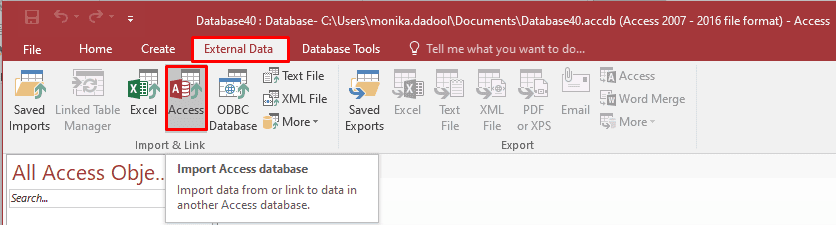
- In the Get External Data – Access Database wizard, click the Browse option to choose the damaged .accdb file.
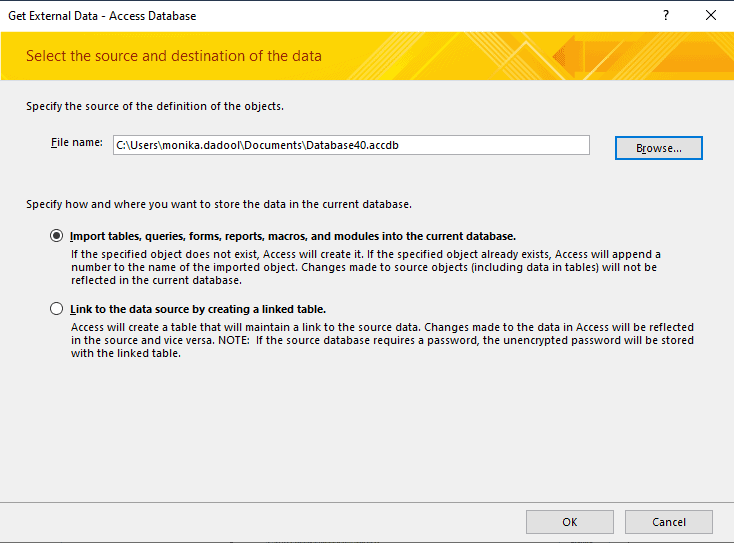
- In the same window, click the option labeled “Import tables, forms, reports, macros, and modules into the current database.”
- Now, click on the desired objects to import them into the new database. Click OK.
Method 2: Turn Off Name Auto Correct Option
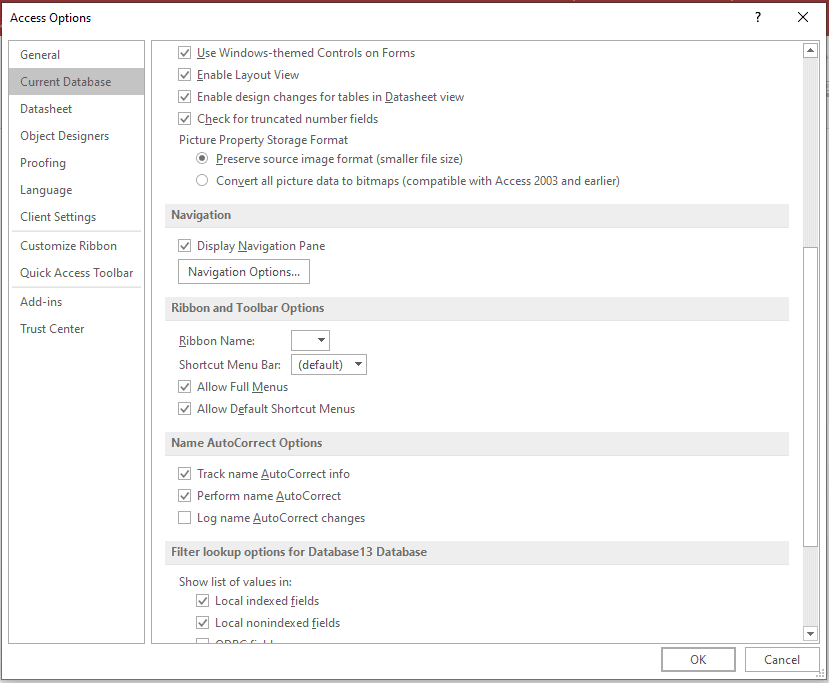
When the Access database gets corrupt, you can turn off the Name Auto correct option. It prevents the Access from creating buggy name maps. To disable this option, follow the below steps:
- In Access, go to File and then click Options.
- In Access Options window, click Current Database.
- Unselect the following options under Name Autocorrect Options:
- Track name Auto_correct info
- Perform name Auto_correct
- Then, click OK.
Method 3: Use MS Access’ Compact and Repair Utility
Microsoft Access has an inbuilt utility, called Compact and Repair, to repair Access database files. It can resolve minor corruption issues in the files. To use this inbuilt utility, follow the steps given below:
- Open MS Access and double-click on Blank Database.
- Click File and then select Close.
- On blank database, click on File > Database Tools and then click Compact and Repair Database.
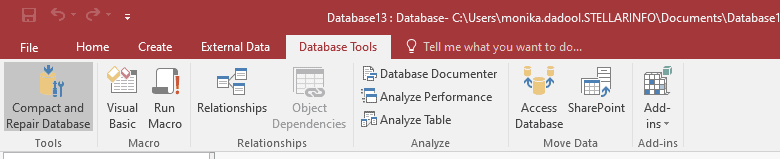
- Click on the corrupted database file (.accdb) you want to repair and then click Compact.

- Wait for a few minutes till the repair process is finished.
The native Microsoft Access repair tool – Compact and Repair – is useful for fixing minor corruption. Also, it isn’t always successful in repairing the corrupt database (.accdb) file and can fail due to certain reasons. However, third-party Access database repair tools can handle severe corruption. If your database file is highly corrupted, you can take the help of a professional Access database repair tool. One such dedicated and reliable tool is Stellar Repair for Access.
Why Stellar Repair for Access?
- It can recover all the objects from the corrupted Access database file with complete integrity.
- This tool helps you fix common corruption-related errors in Access database.
- It can repair split databases.
- The tool has an intuitive user interface, which makes it easy for even non-technical users to use this tool.
- The demo version of the tool allows to preview all the repairable database objects, thus helps to verify its functionality before getting the licensed version.
How to Prevent Corruption in Access Database (.accdb) Files?
Here are some useful tips that you can follow to prevent corruption in database file:
- Always have an advanced antivirus software installed on your system to protect your system from virus or malware attacks.
- Make sure to regularly update Microsoft Access application and system.
- If you have a large-sized database, then split your database.
Conclusion
In this post, we’ve mentioned the causes of corruption in .accdb file and simple ways with stepwise instructions to repair the corrupted database file. You can restore the file from backup, import the objects from the corrupt file into a new database, or use the Compact and Repair tool to repair the file. If your file is severely corrupted or if nothing works, then you can opt for a professional Access repair tool, such as Stellar Repair for Access. This DIY tool can help you repair highly corrupted .accdb/.mdb files without any data loss. You can download the tool’s demo version to verify its accuracy.